Website Security
WordPress Website Hacked
Last reviewed
Direct answer
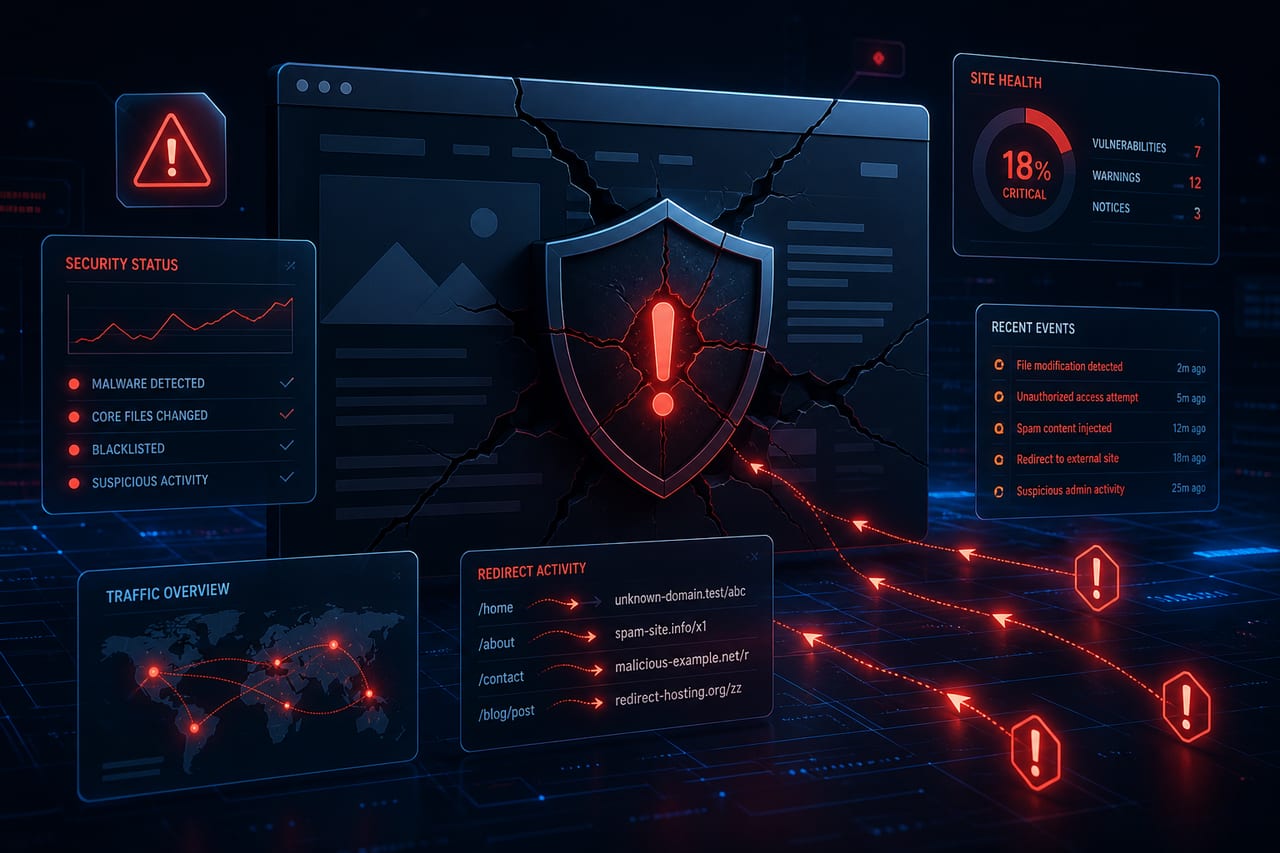
If your WordPress site is hacked, contain the damage first — take a forensic backup, lock down logins, and remove malicious code from a clean restore or trusted file replacements — then rotate every password and secret; do not “test” suspicious scripts or attempt to reuse attacker techniques.
A compromised WordPress site often shows spam redirects, fake admin users, Google Safe Browsing warnings, or mysterious file changes. Safe recovery means preserving evidence, cleaning or restoring from a known-good backup, rotating credentials, and closing the entry point. This guide focuses on containment and cleanup workflow — not on creating or experimenting with exploits.
Key facts
Verifiable numbers and definitions — each claim links to its source.
- WordPress treats a 'hack' as ambiguous until you document Indicators of Compromise—blacklist warnings, unauthorized users, malware flags, or visible defacement. (FAQ: My site was hacked)
- After compromise, WordPress guidance includes regenerating secret keys in wp-config.php so any still-logged-in attacker sessions are forced offline. (FAQ: My site was hacked)
- WordPress hardening docs are the recommended follow-up after cleanup so the same weak passwords, outdated software, or open access paths are not left in place. (Hardening WordPress)
What the error means
“Hacked” usually means an attacker gained the ability to change files, the database, or both — through stolen credentials, vulnerable plugins/themes, exposed backups, or outdated core. Symptoms range from subtle SEO spam to full-site redirects and host malware locks. Effective response prioritizes visitor safety and credential rotation over curiosity: isolate the site if needed, keep a copy of the infected state for analysis, restore clean code and content, then harden so reinfection does not occur within hours. Rescue 404 does not publish exploit instructions; cleanup uses official hardening guidance, trusted file sources, and host/Google review processes.
Common symptoms
- Homepage or random URLs redirect to spam, phishing, or unrelated domains
- Google Search Console or browsers show Safe Browsing / “deceptive site” warnings
- Unknown administrator users, odd scheduled tasks, or unfamiliar plugins appear
- Files in core, theme, or uploads show unexpected recent modification dates
- Host malware scanner quarantines files or suspends the account for abuse
- Outbound spam email sent from the site or server
- Search results list Japanese/pharma spam URLs you never published
Most likely causes
- 01 Stolen or weak wp-admin, FTP/SFTP, or hosting panel passwords
- 02 Outdated WordPress core, plugins, or themes with known vulnerabilities
- 03 Nulled/pirated extensions that ship backdoors
- 04 World-writable permissions or publicly reachable backup archives
- 05 Compromised computer or agency machine used to deploy changes
- 06 Exposed `xmlrpc.php` / login endpoints abused for credential stuffing at scale
- 07 Infected neighboring site on shared hosting pivoting into your account
What changed before the problem started
- New plugin/theme installed from an untrusted source
- Missed core or extension updates over weeks or months
- Staff turnover without revoking admin or SFTP access
- Backup `.zip` or `.sql` left inside the web root
- Hosting malware notice or Google security alert arrived
- Sudden traffic to odd query-string URLs or `/wp-admin` spikes
Troubleshooting steps
- 01
Contain access and preserve a forensic copy
Put the site in maintenance or ask the host to temporarily restrict public traffic if visitors are being redirected to malware. Before deleting anything, download a full file+database copy labeled “infected-forensics” and keep it offline. Success signal: you have a dated archive and unauthorized logins are blocked (password resets on admin accounts you still control).
- 02
Rotate every credential tied to the site
Change WordPress admin passwords, hosting panel, SFTP/SSH, database, CDN, and registrar logins. Revoke unused users and application passwords. Assume secrets in `wp-config.php` may be stolen — generate a new DB password and update the config only after you control the panel. Success signal: old passwords no longer work anywhere in the stack.
- 03
Restore from a clean backup taken before the compromise
Prefer a host or backup-plugin snapshot from before symptoms began. Restore files and database together when possible, then immediately update core, plugins, and themes on a secured session. If no clean backup exists, proceed to replace core/plugin/theme files from official zips while scrubbing uploads and the database carefully. Success signal: known spam URLs and redirects are gone after restore.
- 04
Replace WordPress core and extension files from trusted sources
Reinstall core via dashboard or official packages; delete and reinstall plugins/themes from wordpress.org or the vendor — do not “edit out” suspicious lines in pirated code. Inspect `wp-content/uploads` for executable PHP and unexpected `.ico`/image files containing code; quarantine rather than executing them. Success signal: file integrity matches clean packages and uploads no longer contain PHP web shells.
- 05
Audit users, options, cron, and `.htaccess`
Remove unknown administrators. Check Settings for changed siteurl/home, unexpected redirect plugins, and spam widgets. Review cron entries and must-use plugins/drop-ins. Restore a clean `.htaccess` if rewrite rules send traffic to malware domains. Success signal: only known admins remain and redirects no longer fire on a logged-out browser.
- 06
Request review and harden before reopening
In Google Search Console, use the security issues report and request review after cleanup. Enable auto-updates for minor core where appropriate, remove unused extensions, enforce strong passwords/2FA, and confirm backups are stored off the web root. Success signal: Search Console shows issues pending review or cleared, and a post-clean malware scan is clean.
When to stop troubleshooting
Stop DIY cleanup if you cannot obtain a clean backup, malware returns within hours after each pass, the host requires a professional malware remediation letter, customer payment data may have been exposed, or you are uncomfortable editing the database safely. Hand off with the forensic archive, timeline of first symptoms, and a list of users who had admin access.
Information to collect before requesting help
- 01 First noticed date/time and example malicious URLs or redirects
- 02 Screenshots of Google/browser security warnings
- 03 List of admin users and recent plugin/theme installs
- 04 Whether a pre-compromise backup exists and its timestamp
- 05 Host malware scanner output or suspension notice text
- 06 WordPress, PHP, and hosting provider versions
- 07 Who had SFTP, panel, and wp-admin access in the last 90 days
How a professional repairs the problem
A technician preserves an infected copy, rotates credentials, and restores or rebuilds from clean packages while scrubbing uploads and database injections. They remove persistence (mu-plugins, drop-ins, rogue cron, bad `.htaccess`), verify the site on a logged-out browser, submit Google reconsideration when needed, and harden updates, access, and backups so the same door stays closed — without using or demonstrating exploit payloads.
Frequently asked questions
Can I just delete the weird PHP file and go live? +
Will changing my wp-admin password alone fix a hack? +
Should I pay a random “security firm” that emailed me? +
Do I need to notify anyone? +
Why did Google still warn after I cleaned files? +
Are nulled themes a common cause? +
Repair dispatch
Still Need Help Fixing Your Website?
If you are not comfortable editing website files, changing server settings, repairing a database, or troubleshooting a live website, professional help may prevent additional damage or downtime. We will review the problem before accepting the repair.
- You will receive a clear explanation of the likely cause.
- We will tell you if the issue falls outside our repair scope.
- No additional work will be performed without approval.
- A backup should be created whenever access and website condition allow it.
Do not share passwords through an unencrypted contact form — use Password Pusher (self-destructing link). Prefer a dedicated Rescue 404 admin account, not your personal owner login; if you cannot create one yet, we will add ours after repair.